

The network
The ethoscopes need a router with Wi-Fi. The router gives each ethoscope an address and carries its traffic to and from the node. In most university settings the router should not be connected to the Internet, but the node should be. To reach the node from the Internet (for example to control the platform remotely), give it a second Ethernet port: a USB 3.0 to Ethernet adapter (example) does the job.
Router or access points
Section titled “Router or access points”- Fewer than 10 ethoscopes: any router will do.
- Medium setups: a more powerful router.
- More than 20 ethoscopes: use professional access points (APs), which need not be expensive. The APs handle the wireless side and the router only assigns addresses and routes traffic.
The lab has used two systems, TP-Link and Ubiquiti UniFi. Both are good value; TP-Link is much easier to set up and is the current recommendation.
TP-Link (recommended)
- a TP-Link wireless access point (example);
- optionally, an Omada hardware controller (OC200), or the software controller described below.
Ubiquiti UniFi
- a UniFi Security Gateway;
- a UniFi access point;
- optionally, a UniFi Cloud Key controller. The system works without it, and a software controller running on the node can replace it.
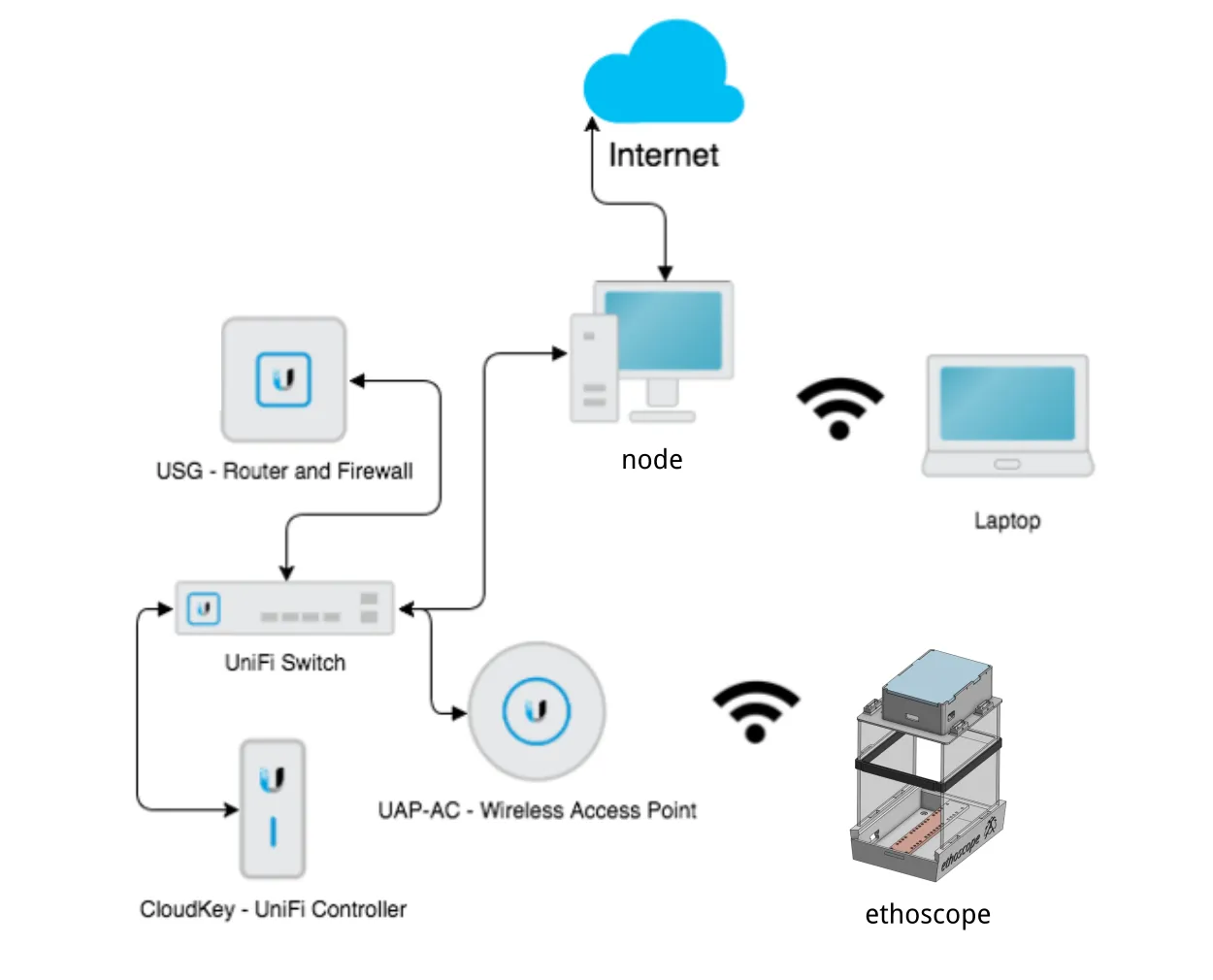
In most setups the gateway is not connected to a modem, so ignore the Internet side of the diagram. Larger setups can add more access points.
Wi-Fi settings
Section titled “Wi-Fi settings”Unless you have a very good reason not to, use these settings:
- network name (SSID):
ETHOSCOPE_WIFI - password:
ETHOSCOPE_1234
New ethoscopes come with these settings and join the network on their own. With a different name or password, each new ethoscope must first be connected by Ethernet and configured from the node, or have its card edited before first boot (see first boot and settings). Because the defaults are public, choose your own name and password if people outside your group can reach the network.
Addresses
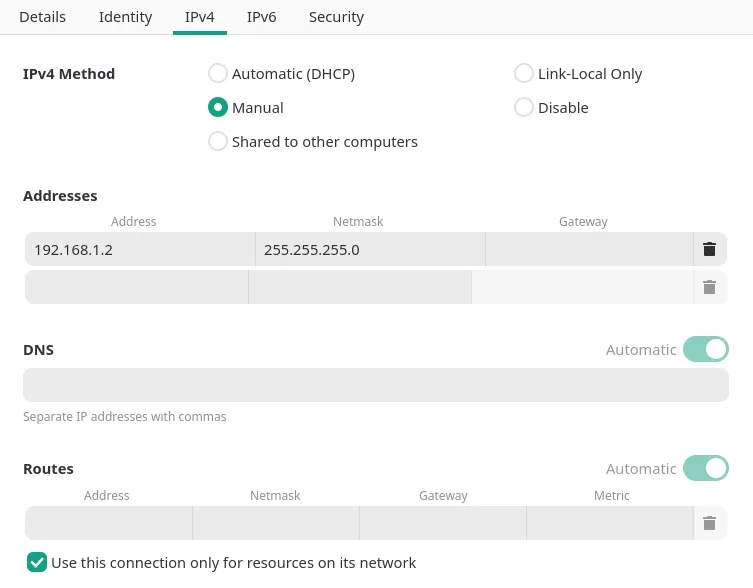
Section titled “Addresses”The platform does not depend on particular addresses: use any subnet. The 192.168.1.x range is common and works well. The node must always have the same address, such as 192.168.1.2, because the ethoscopes send their data to it. Either reserve that address for the node on the router, or give the node a static address in its own network settings.
Routing
Section titled “Routing”On the node, make the ethoscope connection a secondary one, or the node may lose its Internet access. In the connection’s settings, tick “Use this connection only for resources on its network”.
Number of clients
Section titled “Number of clients”Home Wi-Fi routers are not designed for many clients, and performance drops above about 20. For larger networks use proper access points. Even UniFi access points accept at most 127 clients, so more ethoscopes need a second access point. Networks of more than 254 ethoscopes need several subnets, which is beyond the scope of this manual.
Software controllers
Section titled “Software controllers”Both systems can be managed from a controller running in Docker on the node instead of a hardware controller.
TP-Link: Omada controller
Section titled “TP-Link: Omada controller”Run the Omada controller in Docker:
sudo docker run -d \ --name omada-controller \ --restart unless-stopped \ --net host \ -e MANAGE_HTTP_PORT=8088 \ -e MANAGE_HTTPS_PORT=8043 \ -e PORTAL_HTTP_PORT=8088 \ -e PORTAL_HTTPS_PORT=8843 \ -e SHOW_SERVER_LOGS=true \ -e SHOW_MONGODB_LOGS=false \ -e SSL_CERT_NAME="tls.crt" \ -e SSL_KEY_NAME="tls.key" \ -e TZ=Etc/UTC \ -v omada-data:/opt/tplink/EAPController/data \ -v omada-work:/opt/tplink/EAPController/work \ -v omada-logs:/opt/tplink/EAPController/logs \ mbentley/omada-controller:latestUniFi: UniFi controller
Section titled “UniFi: UniFi controller”Without a Cloud Key, the UniFi controller container can run on the node:
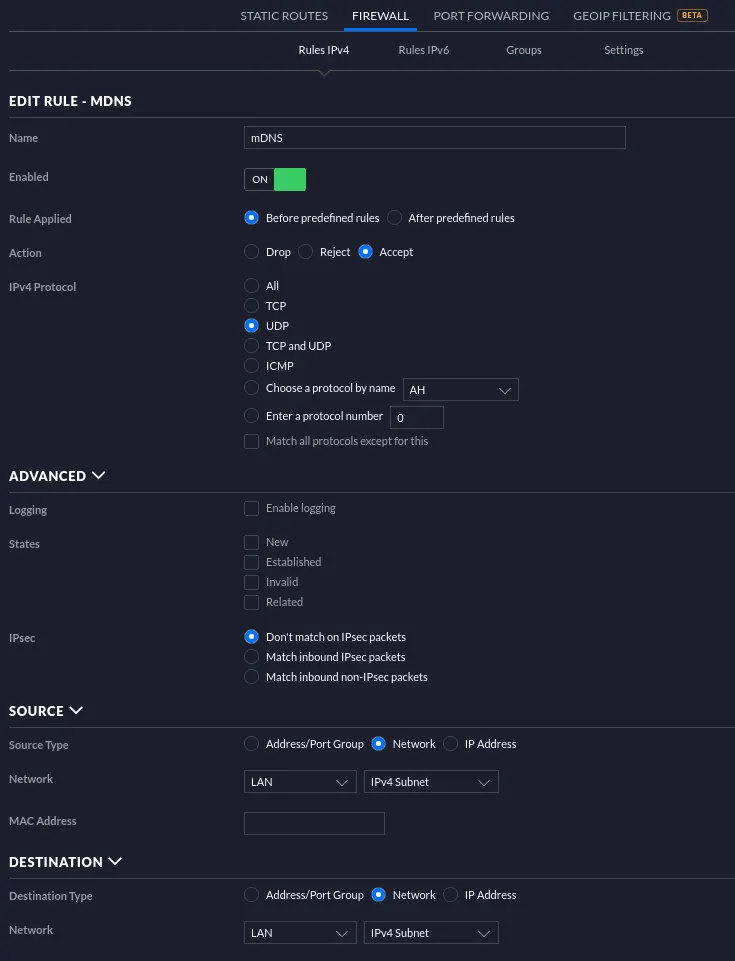
sudo docker run -d \ --name=unifi-controller \ -e PUID=1000 \ -e PGID=1000 \ -e MEM_LIMIT=1024 `#optional` \ -e MEM_STARTUP=1024 `#optional` \ -p 3478:3478/udp \ -p 10001:10001/udp \ -p 8080:8080 \ -p 8443:8443 \ -p 1900:1900/udp `#optional` \ -p 8843:8843 `#optional` \ -p 8880:8880 `#optional` \ -p 6789:6789 `#optional` \ -p 5514:5514/udp `#optional` \ -v /etc/unifi:/config \ --restart unless-stopped \ lscr.io/linuxserver/unifi-controllerAfter installation, open the firewall to mDNS (Avahi, Bonjour) traffic, which the node uses to discover the ethoscopes. The simplest way is a rule that accepts all UDP traffic within the LAN.
Accessories
Section titled “Accessories”- A 16-port switch, such as the TP-Link TL-SF1016D (Amazon).
- An L-shaped bracket for UniFi access points: download the printable files (ZIP), also on Thingiverse.