

ESP sensor
The ESP sensor is a small Wi-Fi device that measures temperature, humidity, pressure and light. The node finds it on the network automatically, and its readings are added to the results of every experiment in the same incubator. The parts are inexpensive.
Hardware
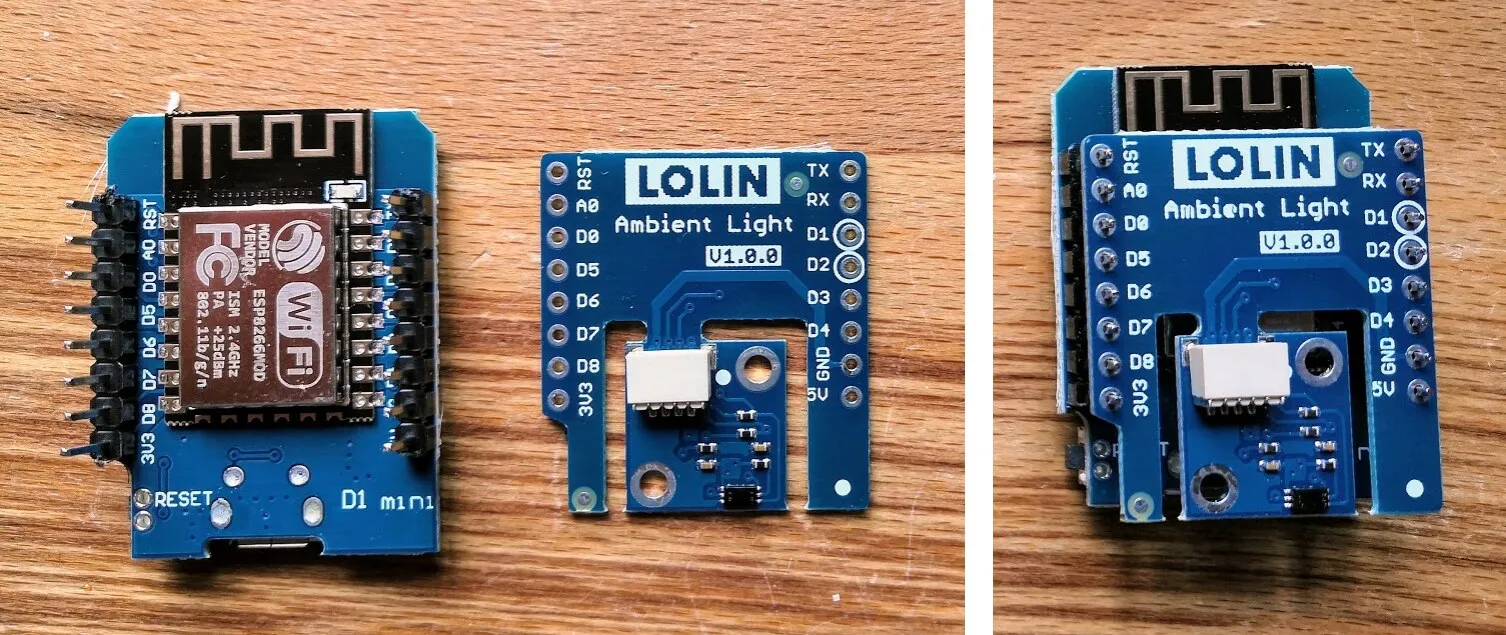
Section titled “Hardware”The sensor runs on any NodeMCU-compatible board, based on the ESP32 or the ESP8266. The ESP8266 is recommended: it is cheaper, more compact, more reliable for this use, and has a range of shields. The lab uses:
- an ESP8266 WeMos D1 Mini (AliExpress);
- a BH1750 light sensor shield (AliExpress);
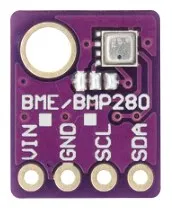
- a BME280 temperature, humidity and pressure sensor, either the 3.3 V version (AliExpress) or the 1.8–5 V version (AliExpress);
- an I2C cable (AliExpress);
- right-angled PCB headers (RS 251-8654) and 4-way header sockets (RS 251-8193).
Printed cases
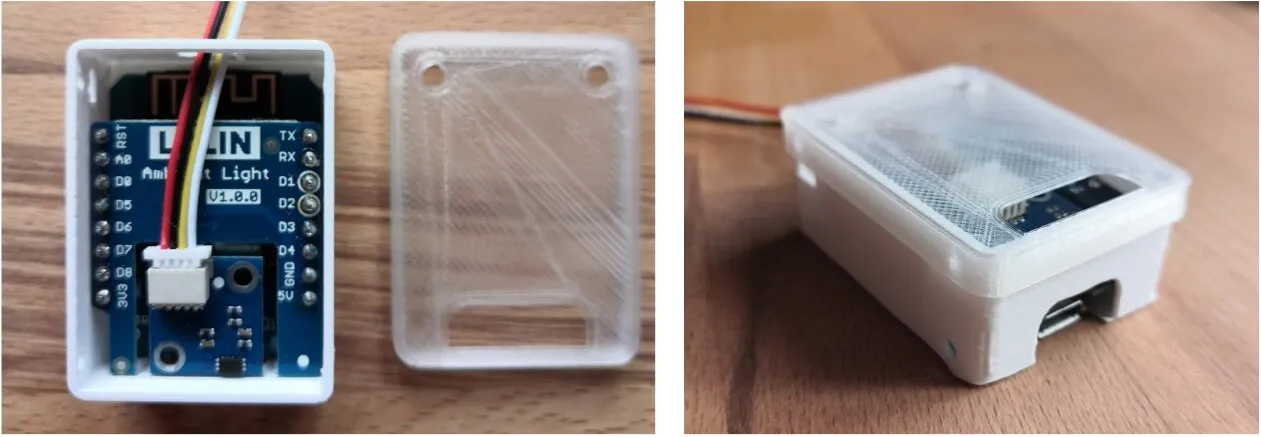
Section titled “Printed cases”The two parts are kept apart because the ESP’s Wi-Fi module gives off enough heat to distort the temperature reading.
Assembly
Section titled “Assembly”Solder the pins to both boards; sockets are not needed. Connect the BME280 with an I2C cable: red to GND, black to D2 (SDA), yellow to D1 (SCL) and white to 3.3 V.
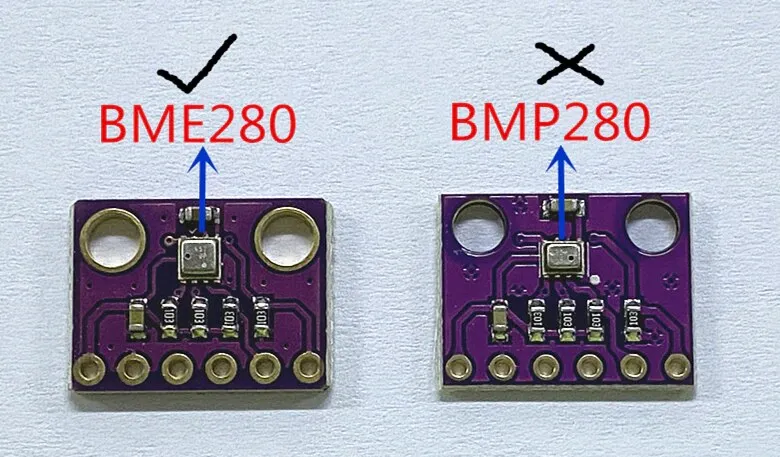
The BME280 comes in two versions, a 4-pin board for 1.8–5 V and a 6-pin board for 3.3 V; both work. The chip you want is square, with a black dot on its left.
Programming
Section titled “Programming”-
Install the Arduino IDE.
-
In Preferences, add this address to Additional Board Manager URLs:
https://github.com/esp8266/Arduino/releases/download/3.1.2/package_esp8266com_index.jsonWait a minute or two for the IDE to download the package list, then install the ESP8266 family from Boards → Boards Manager.
-
Install these libraries: EEPROM_Rotate by Xose Pérez, Adafruit BME280 Library, BH1750FVI by PeterEmbedded, and ArduinoJson by Benoît Blanchon.
-
Open the sensor sketch from the ethoscope repository. Select WeMos D1 R1 as the board for an ESP8266, or ESP32 Dev Module for an ESP32.
-
Connect the board, select its port (usually
/dev/ttyUSB0), then compile and upload.
Using the sensor
Section titled “Using the sensor”The node finds the sensor and lists it at the top of its main page, as etho_sensor_000 by default. Change its name and location from the node, or open http://etho_sensor_000.local/web in a browser on the ethoscope network. The name is up to you; the location must match the name of one of the incubators registered on the node. When you start a tracking or video experiment in that incubator, the sensor’s readings are added to the results. The name and location are stored on the sensor itself.
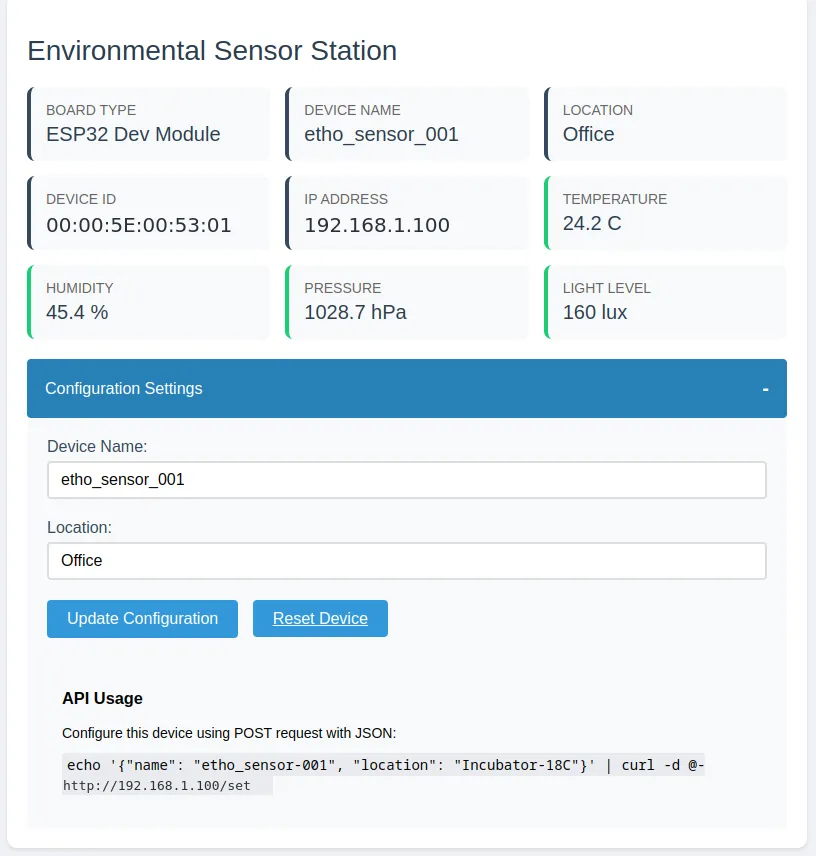
The sensor’s web page also shows its readings; refresh it to update them.
For weather data, or for a sensor without hardware, see the virtual sensor.