

GPIO PCB shield
The GPIO shield sits on the Raspberry Pi’s GPIO header, inside the ethoscope. It provides:
- an I2C connector (ground, 3.3 V or 5 V, SDA, SCL);
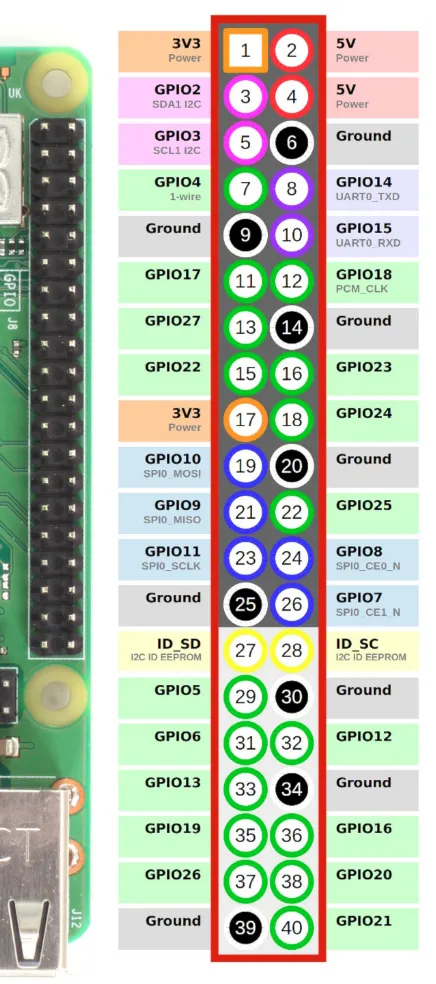
- two buttons (RS 718-2405) that connect a GPIO to ground: BCM GPIO 13 and 26, on pins 33 and 37;
- a ULQ2803A Darlington array (RS 168-8906) with eight outputs at the chosen voltage: 5 V (pin 2), 3.3 V (pin 1) or the input voltage;
- a jumper to choose the voltage of the outputs driven through the Darlington array;
- a jumper to choose whether the 5 V input also feeds the GPIO header or only the Darlington array;
- plain 5 V and ground, as output or input, and plain 3.3 V and ground as output.
The board
Section titled “The board”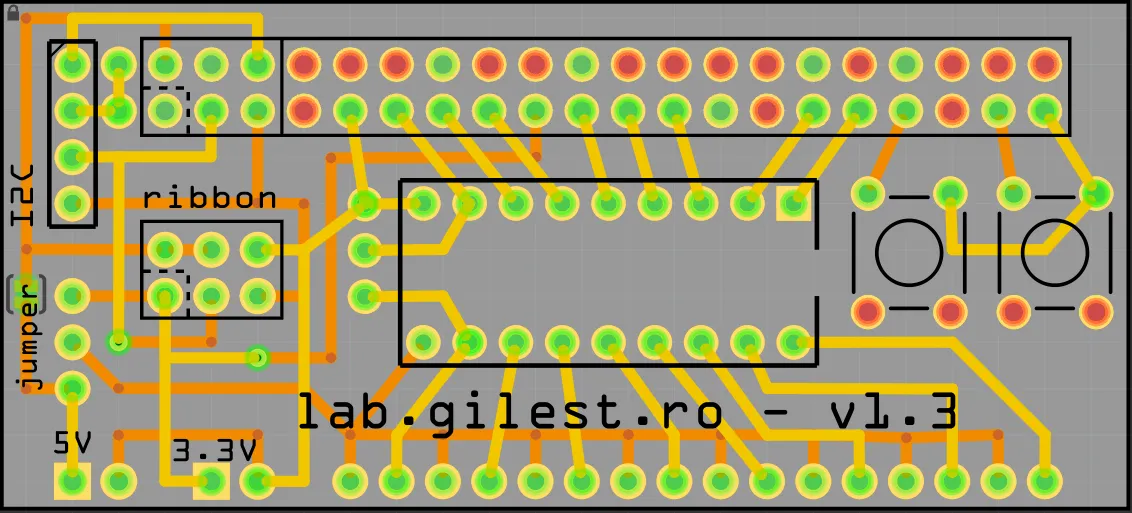
- The three pins marked jumper set the voltage of the Darlington array: 5 V (middle to lower pin) or 3.3 V (middle to upper pin). At 3.3 V the GPIO rail supplies at most 50 mA in total; for larger loads, run the array at 5 V and bring the voltage down with a regulator or resistor.
- By default, 5 V comes from the 5 V input on the bottom left. Solder the solder jumper on the back of the board to output the GPIO’s 5 V instead.
- The supply of the I2C connector, 3.3 V or 5 V, is chosen by soldering the matching pads on the left of the GPIO header.
- The connector marked ribbon repeats the first six pins of the GPIO header: connect the ribbon cable to the lightbox there.
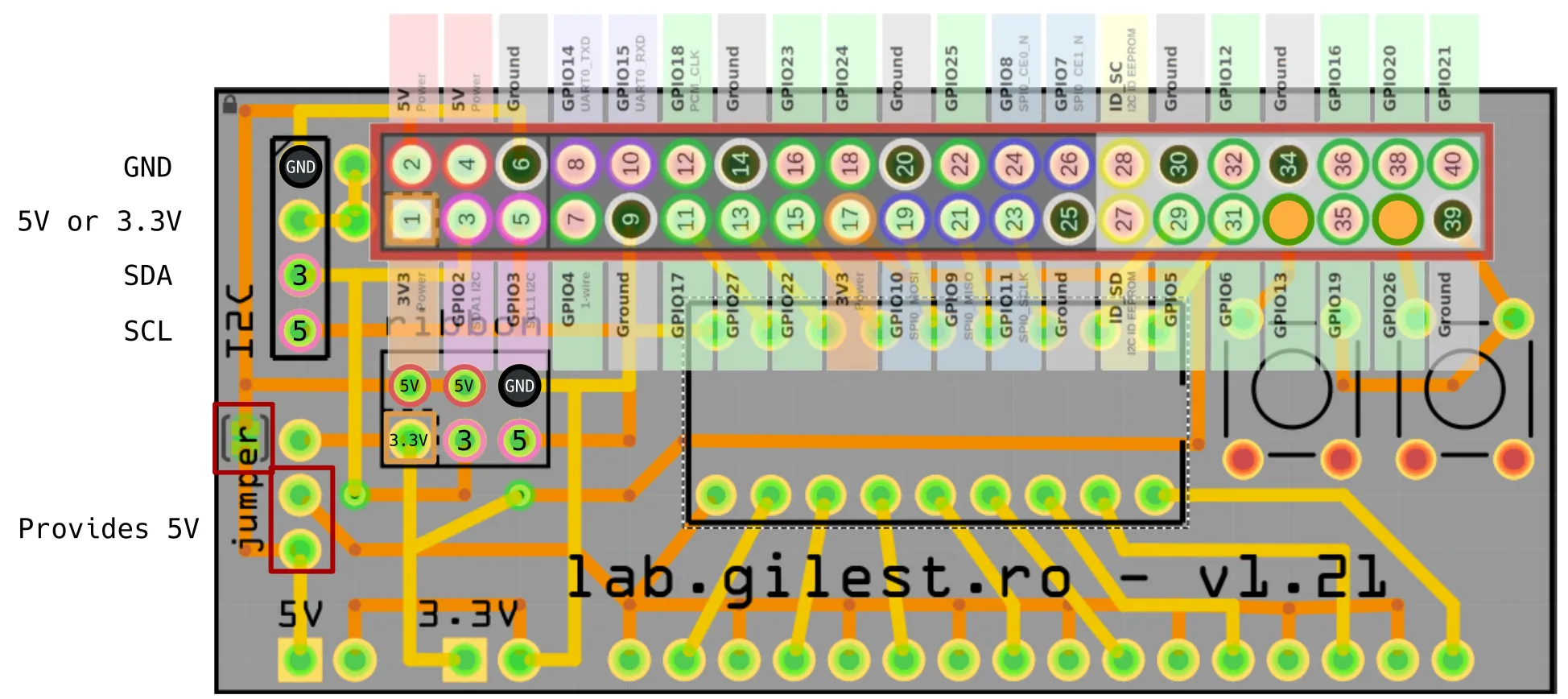
Gerber files for the GPIO shield, version 1.21
Components
Section titled “Components”- 1 ULN2803A Darlington array (Farnell 1094428, RS 168-6833), or, for the light control alone, one BS170 MOSFET
- 2 tactile switches (Farnell 1813631, RS 269-3801, Adafruit 367)
- 1 GPIO socket, 40-way (Farnell 2847248, RS 765-5815)
- 1 6-way ribbon-cable-to-board connector (CPC CN21929, RS 211-2842)
- 6-way ribbon cable (RS 197-3370)
- 1 6-way ribbon cable connector for the lightbox side (RS 832-3613)
- 1 100 Ω resistor, for the light control
- 1 Cree 3.3 V 1 W white LED (AliExpress)
Buttons
Section titled “Buttons”The buttons are read by GPIO.py, run by its own service, ethoscope_GPIO_listener.service. By default:
| Button | Short press | Long press (3 s or more) |
|---|---|---|
| Pin 33 | systemctl restart ethoscope_device |
reboot |
| Pin 37 | ethoclient stop (stops the experiment) |
poweroff |
The actions are stored in /etc/gpio.conf on the ethoscope, created with these defaults on first run, and can be changed there.
Light-dark cycle LED
Section titled “Light-dark cycle LED”The shield can also drive a white LED that simulates a light-dark (LD) cycle during experiments. In the simplest set-up, GPIO17 (BCM; pin 11) switches the LED through a BS170 MOSFET used as a low-side switch; the Darlington array can be used instead.
GPIO17 → BS170 gate → LED → 100 Ω resistor → 5 VGPIO17 high (pinctrl set 17 op dh) switches the LED on; low (pinctrl set 17 op dl) switches it off.
The light service
Section titled “The light service”The LED is run by its own service, ethoscope_light.service, which runs light_daemon.py:
- It is independent of the device server: if the server crashes, the light schedule continues.
- It reads its schedule from
/run/ethoscope/light_schedule.jsonevery 30 seconds. - It listens on a Unix socket,
/run/ethoscope/light_daemon.sock, so that other programs, including theethoscope-lightcommand, can force the LED on or off without changing the schedule. - It defaults to safe: the LED is off when there is no schedule file, no experiment is running, or anything goes wrong; the service unit also turns it off if the daemon stops unexpectedly.
- Schedules may cross midnight (for example 22:00–06:00).
- When tracking starts, the device server switches the LED on while the six reference frames used to find the targets are analysed, then hands control back to the schedule. The wells are therefore evenly lit whatever the LD phase, and targets are recognised more reliably.
The schedule is set per incubator in the Incubators tab of the node, with a lights-on and a lights-off time (for example 07:00–19:00 for a 12:12 LD cycle), and is sent to the ethoscope when a tracking or recording experiment starts.
On the ethoscope’s page, the node shows the state of the light: a yellow sun when the LED is on, a grey moon when it is off during the dark phase, a light-grey bulb when the service runs without a schedule, and no icon when ethoscope_light.service is not installed.
install_ethoscope_debian.sh installs the service. To install it by hand:
sudo cp /opt/ethoscope/services/ethoscope_light.service /etc/systemd/system/sudo systemctl daemon-reloadsudo systemctl enable --now ethoscope_light.serviceCommand-line control
Section titled “Command-line control”The ethoscope-light command, installed in /usr/bin by the same script, talks to the service from any shell on the ethoscope:
ethoscope-light on # force the LED on (overrides the schedule)ethoscope-light off # force the LED off (overrides the schedule)ethoscope-light release # drop the force and follow the schedule againethoscope-light status # print the service status as JSONA force lasts until it is released or the ethoscope restarts. If the service is not running, the command says so and exits with code 1. Example status:
{ "led": "on", "mode": "forced", "force": "on", "schedule_active": true, "lights_on": "07:00", "lights_off": "19:00"}To test the LED, follow the service log while forcing it on and off, or write a schedule directly (the same file the node writes when an experiment starts):
journalctl -u ethoscope_light -fecho '{"lights_on":"00:00","lights_off":"23:59","active":true}' | sudo tee /run/ethoscope/light_schedule.json