

The node
The node is a regular computer, set up to:
- run the web interface that controls all ethoscopes (port 80);
- run the update server that updates the node and the ethoscopes (port 8888);
- copy the result databases and video chunks from every active ethoscope;
- optionally, copy the data to a remote drive (physical or cloud);
- optionally, keep the clocks of the whole platform in sync.
The node only orchestrates the platform: it does not analyse any data. Each ethoscope tracks in real time, so if the node or the network goes down while experiments are running, tracking is not interrupted, and the data are backed up as soon as the node is running again.
Setting up a node means:
- getting a reasonable computer (it need not be state of the art; an Intel i5 or better is recommended);
- installing Linux and the node software, either together from the live image or separately. The node is built for Arch-based distributions, and Manjaro is recommended; on other Linux distributions, run it in Docker. Some familiarity with Linux helps.
Hardware
Section titled “Hardware”The node does no heavy computing, but serves web pages and moves data. Recommended:
- a reasonably recent CPU (Intel i3, i5 or i7, made after 2014); a four-core i7 is ideal;
- at least 4 GB of RAM, 16 GB recommended;
- an SSD of at least 128 GB for the operating system;
- a larger drive for the data, internal or external (4 TB recommended);
- two Ethernet ports: one for the Internet and one for the ethoscope router. Most PCs have one built in; add the second with a USB 3.0 to Ethernet adapter.
Installing the node
Section titled “Installing the node”Option 1: the live image (recommended)
Section titled “Option 1: the live image (recommended)”This is by far the easiest way. Download the node live image (ISO) and write it to a USB drive (4 GB or more) or a DVD with balenaEtcher. Boot the future node from it; if it does not boot, enable booting from USB in the computer’s BIOS. The installer is self-explanatory: it installs Manjaro Linux with the node software included. On a modern computer the installation takes about ten minutes, and the node is ready at the first boot.
Option 2: the Arch package
Section titled “Option 2: the Arch package”The node is designed for Arch Linux and its derivatives; Manjaro is recommended. Download its installation image, write it to a USB drive, boot from it and follow the installer.
Then install the node software from the AUR. Update the system first:
yay -SyuReboot, then install the node package:
yay -S ethoscope-nodeReboot again. The node is now running: open http://localhost in a browser on the node.
The ethoscope package repository
Section titled “The ethoscope package repository”Instead of building from the AUR, you can install the prebuilt, signed packages of the ethoscope package repository. First download the repository’s public key and check its fingerprint:
curl -fsSLO https://repo.ethoscope.lab.gilest.ro/ethoscope-repo-key.ascgpg --show-keys ethoscope-repo-key.ascThe fingerprint must read 6BA6 61B1 A198 8DDF 50BF 7F2A DE7F 773B DE8D 92BF. Add the key to pacman’s keyring and trust it:
sudo pacman-key --add ethoscope-repo-key.ascsudo pacman-key --lsign-key 6BA661B1A1988DDF50BF7F2ADE7F773BDE8D92BFThen add the repository at the end of /etc/pacman.conf:
[ethoscope]SigLevel = Required DatabaseOptionalServer = https://repo.ethoscope.lab.gilest.ro/and install the node:
sudo pacman -Sy ethoscope-nodePackages must carry a valid signature from this key. The repository database itself is not signed yet, hence DatabaseOptional. Do not set SigLevel to Never or TrustAll.
Option 3: Docker
Section titled “Option 3: Docker”Pre-built images of the node are published on the GitHub Container Registry for every change to the dev and main branches:
docker pull ghcr.io/gilestrolab/ethoscope-node:latestThe Docker/node folder of the repository has a Docker Compose setup that starts the node with its backup, update, git and FTP services, keeping data in /ethoscope_data and configuration in /etc/ethoscope on the host. Copy .env.example to .env, adjust the paths if needed, then run docker compose up -d. The folder’s README describes the services and options.
Docker works best on Linux. On Windows the containers cannot use the host’s network, so the node does not discover ethoscopes automatically (issue #193). macOS is untested.
Option 4: a Raspberry Pi
Section titled “Option 4: a Raspberry Pi”A Raspberry Pi 4 or 5 is powerful enough to run a node for a few ethoscopes. Download the Raspberry Pi node image and write it to a 32 GB SD card with balenaEtcher, then insert the card and power the Pi. The Pi runs “headless”, without monitor or keyboard; open the node’s address from another computer on the same network. Connect the Pi’s Ethernet port to the Internet. The Pi could join ETHOSCOPE_WIFI through its own Wi-Fi, but a USB-to-Ethernet adapter connected to the ethoscope router is more reliable. Store the data on an external drive (see Data saving and backups).
Configuring the node
Section titled “Configuring the node”The setup wizard
Section titled “The setup wizard”The first time you open the node in a browser (http://localhost on the node), a nine-step wizard guides you through the configuration. It runs until completed and can be started again at any time from the Admin tab.
- Welcome: overview and prerequisites.
- Basic setup: the node’s hostname, the data directory (default
/ethoscope_data) and the configuration directory (default/ethoscope_data/config); see below. - Admin user: the first administrator account.
- Additional users: the people who will run experiments.
- Incubators: the incubators or rooms where the ethoscopes are kept.
- Virtual sensor: optionally, a virtual environmental sensor.
- Remote access: optionally, a secure tunnel for access from outside the institution.
- Notifications: optionally, email, Mattermost or Slack alerts, for example when an ethoscope goes offline during an experiment.
- Completion: review and finish.
Where the configuration lives
Section titled “Where the configuration lives”All of the node’s configuration (ethoscope.conf, the ethoscope-node.db database, the SSH keys/ used for password-free backups, and tunnel.env) lives in one configuration directory. By default this is {ETHOSCOPE_DATA}/config, that is /ethoscope_data/config, so it sits next to the data and moves with the data drive.
The node must know where this directory is before it can read ethoscope.conf, so its location cannot be stored in that file. Instead, a small file at a fixed path, /etc/ethoscope/environment, points to it:
ETHOSCOPE_DATA_DIR=/ethoscope_dataETHOSCOPE_CONFIG_DIR=/ethoscope_data/configEvery node service reads this file (systemd units through EnvironmentFile=), so the location chosen in the wizard applies to the web server, the backup tools and the updater alike. If you change the configuration directory, the node moves the existing files and asks you to restart it, so that the services use the new paths.
The location is resolved, everywhere, in this order: the -c/--configuration option, then the ETHOSCOPE_CONFIG_DIR environment variable, then {ETHOSCOPE_DATA_DIR or /ethoscope_data}/config.
Backups and folders
Section titled “Backups and folders”Most of the platform works out of the box. The data created on the ethoscopes are copied to the node by one service, ethoscope_backup_unified.service, which uses rsync for both the SQLite databases and the video chunks of every active ethoscope. The two streams can instead be handled by ethoscope_backup_sqlite.service and ethoscope_backup_video.service. Check that the services are active in the Admin tab (green gear icon) of the node’s management page.
The same page sets where the data are saved, for example on an external drive.
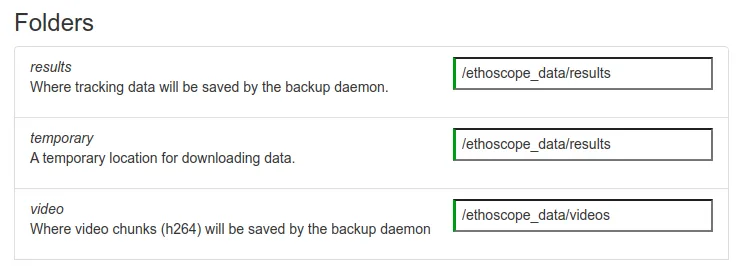
The backup folders can also be set when starting the backup tool; options override the configuration file:
python rsync_backup_tool.py --helpUsage: rsync_backup_tool.py [options]
Options: -h, --help show this help message and exit -D, --debug Set DEBUG mode ON -i SERVER, --server=SERVER The server on which the node is running will be interrogated first for the device list -r RESULTS_DIR, --results-dir=RESULTS_DIR Destination directory for results/database files -v VIDEOS_DIR, --videos-dir=VIDEOS_DIR Destination directory for video files -s, --safe Set Safe mode ON -e ETHOSCOPE, --ethoscope=ETHOSCOPE Force backup of given ethoscope number (eg: 007) --unified Use unified rsync for both results and videos (default) --results-only Backup only database/results files --videos-only Backup only video files -c CONFIG_DIR, --configuration=CONFIG_DIR Path to configuration directory (default: /ethoscope_data/config)backup_tool.py, which copies SQLite databases directly instead of with rsync, takes the same -r, -e and -c options. In most cases it is better to mount the data folders on an external or network drive than to change these paths; see Data saving and backups.
Users and incubators
Section titled “Users and incubators”Users and incubators are managed from the same page. The platform has no access control: user accounts do not limit what anyone can do, but record who runs each experiment. Incubators record where each experiment runs and, with sensors, its conditions (light, humidity, temperature).
Click + to add an entry, or pick a name from the list to edit it. A green band next to a field shows that it is filled in correctly; an entry cannot be saved until all required fields are.
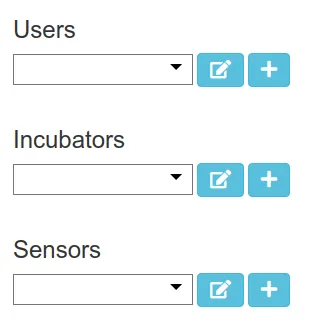
The user editor asks for the full name (a username is derived from it, so Mickey Mouse becomes mmouse), a login PIN (currently unused), and contact details for alerts about experiments. Tick is Active while the user works in the lab and untick it when they leave; is Admin currently has no effect.