

Troubleshooting
Useful tools
Section titled “Useful tools”Most troubleshooting means connecting the Raspberry Pi of an ethoscope to a screen and a keyboard. A few tools make this easier:
- an HDMI-to-USB capture adapter (example), which shows the Pi’s HDMI output in a window on your computer, like a webcam, so no separate screen is needed;
- a long HDMI cable, for example 4 m (Farnell 3374746), since ethoscopes may be far from your computer;
- a wireless keyboard.
Reporting a problem
Section titled “Reporting a problem”Open an issue on GitHub and describe the problem with this template:
#### Steps to reproduce the issue
#### Describe the current behavior
#### Describe the expected behavior
#### Technical details:
- How did you install the system?- What version are you running?- Any other technical detail you think is important
#### Logs/reports<!-- Please, include any logs, code or exception tracebacks that could be helpful for us to diagnose the problem. Large logs and files should be attached. -->
An ethoscope does not appear on the node
Section titled “An ethoscope does not appear on the node”Possible causes:
- the card is damaged or was not written correctly;
- the ethoscope does not boot properly;
- the
ethoscope_deviceservice is not running properly; - the ethoscope boots but cannot join the network;
- it joins the network but cannot announce itself (Avahi);
- it does everything right, but the node fails.
To tell them apart, connect the ethoscope to a screen and a keyboard and watch it boot.
Problems at boot
Section titled “Problems at boot”A Pi stuck on a rainbow screen has a hardware problem: either the card was not written correctly or the Pi is faulty.
If only one partition of the card is damaged, the Pi may instead stop in emergency mode:
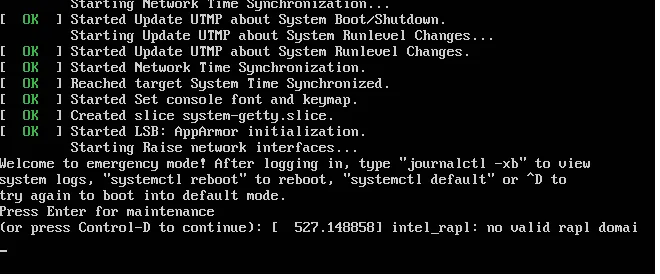
This usually means a partition was not unmounted cleanly. On the older Arch Linux images it is generally the third partition, mounted on /var: log in as root for maintenance (default password root on those images), mount the partition, which triggers a file system check, and reboot:
mount /varrebootAfter a successful boot you reach a login prompt. Log in with the image’s default user (ethoscope, password ethoscope; alarm, password alarm, on the older Arch images) and continue with the checks below.
Is the ethoscope software running?
Section titled “Is the ethoscope software running?”Check the device service:
systemctl status ethoscope_deviceActive: active (running) means it is running as it should. To read its log since boot:
journalctl -u ethoscope_device -bIs the ethoscope on the network?
Section titled “Is the ethoscope on the network?”Show the address of the Wi-Fi adapter:
ip -4 addr show wlan0If the ethoscope is connected, the output contains a line such as inet 192.168.1.100/24: here the ethoscope’s address is 192.168.1.100. Note it down for the next checks. For a wired connection, use eth0 instead of wlan0. If no address is shown, switch the adapter on and reboot if it comes back:
sudo ip link set wlan0 upThis one-liner prints all the ethoscope’s IPv4 addresses:
ip -4 addr | grep -oP '(?<=inet\s)\d+(\.\d+){3}'Ethoscopes join only the network they are configured for (see The network); they cannot join one with a different name or password.
Can the node see the ethoscope?
Section titled “Can the node see the ethoscope?”If the device service runs and the ethoscope has an address, the problem may be the network: the router may hand out addresses from different subnets, or block traffic between devices. On the node, check that its ethoscope-network adapter has an address in the same range, with only the last number different:
ip -4 addrOn a typical node this shows 192.168.1.2 on the adapter connected to the ethoscope router. Then ping the ethoscope from the node, using the address noted earlier:
ping -c 5 192.168.1.100Replies such as 64 bytes from 192.168.1.100: icmp_seq=1 ttl=64 time=0.361 ms mean the two can reach each other. Next, check port 9000 of the ethoscope, which the node uses to query it:
curl http://192.168.1.100:9000/idAn answer such as {"id": "19391871ba3840c19ba3f59ac38a040b"} means the node can reach the ethoscope’s web server. Ethoscopes announce themselves on the network with Avahi (Bonjour, mDNS), on port 5353; if the router blocks that port, the node cannot find them by itself. Check that the announcements reach the node:
sudo systemctl start avahi-daemonavahi-browse -a | grep ETHOEach ethoscope should appear as a _ethoscope._tcp service, for example ETHOSCOPE175-175f0ab9fc5f4572859da127fe59ed4b. If everything works, restart the node’s web interface:
sudo systemctl restart ethoscope_nodeIf the ethoscope still does not appear, open an issue.
An ethoscope went offline during tracking
Section titled “An ethoscope went offline during tracking”This usually has one of two causes:
- A network failure. If the Wi-Fi goes down, for example in a power cut, all ethoscopes try to rejoin at once and the router may not manage to give them all an address. Connect the ethoscope to a screen: if it shows a working prompt, it is still running and most likely still saving data. Let the experiment finish; when you are ready to stop it, log in with the keyboard and reboot. The ethoscope then comes back online, and you can stop it and collect the data.
- A damaged SD card. If the screen is frozen, the card is probably damaged. Unplug the ethoscope and recover the data from the card.
The sleep pattern looks wrong at night
Section titled “The sleep pattern looks wrong at night”Some ethoscopes with the Pi NoIR camera v2 record no sleep at night. This is a known and important bug: see issue #97.
Some ethoscopes do not back up
Section titled “Some ethoscopes do not back up”Usually either the backup service on the node has crashed, or the network is too slow. Restart the node first. If that does not help, force a backup of one ethoscope from a terminal on the node, and read what goes wrong:
cd /opt/ethoscope/src/node/scripts/sudo python rsync_backup_tool.py -e 154where 154 is the number of the ethoscope.
On ethoscopes with the older MariaDB images, the backup may fail with Host '…' is blocked because of many connection errors; unblock with 'mysqladmin flush-hosts'. After a poor connection, the database on the ethoscope refuses further connections from the node. Log in to that ethoscope and unblock it:
sudo mysqladmin flush-hostsIs the camera working?
Section titled “Is the camera working?”Log in to the ethoscope, from a screen and keyboard or over SSH from the node. List the cameras the Pi detects, and take a test picture:
rpicam-hello --list-camerasrpicam-still -o testshot.jpgOn the older Arch Linux images the command was /opt/vc/bin/raspistill -o testshot.jpg. With a screen connected you see what the camera sees for a moment before the picture is taken. Over SSH, copy the picture to the node to look at it:
The node has no Internet access
Section titled “The node has no Internet access”The node normally has two networks, one for the ethoscopes and one for the Internet, and only the second should provide the default route. ip route show should look like this:
default via 203.0.113.1 dev eno1 proto dhcp metric 20101203.0.113.0/24 dev eno1 proto kernel scope link src 203.0.113.10 metric 101192.168.1.0/24 dev enp0s20u1 proto kernel scope link src 192.168.1.2 metric 100With an extra default route through the ethoscope router, the node usually cannot reach the Internet (ping www.google.com fails):
default via 192.168.1.1 dev enp0s20u1 proto static metric 20100default via 203.0.113.1 dev eno1 proto dhcp metric 20101...Delete that route:
sudo ip route del default via 192.168.1.1To make the fix permanent, set the ethoscope connection to be used only for resources on its own network (see routing).