

Visualising your data
Once the behavpy object is created, the print function will just show your data structure. If you want to see your data and the metadata at once, use the built in method .display()
# first load your data and create a behavpy instance of it
df.display()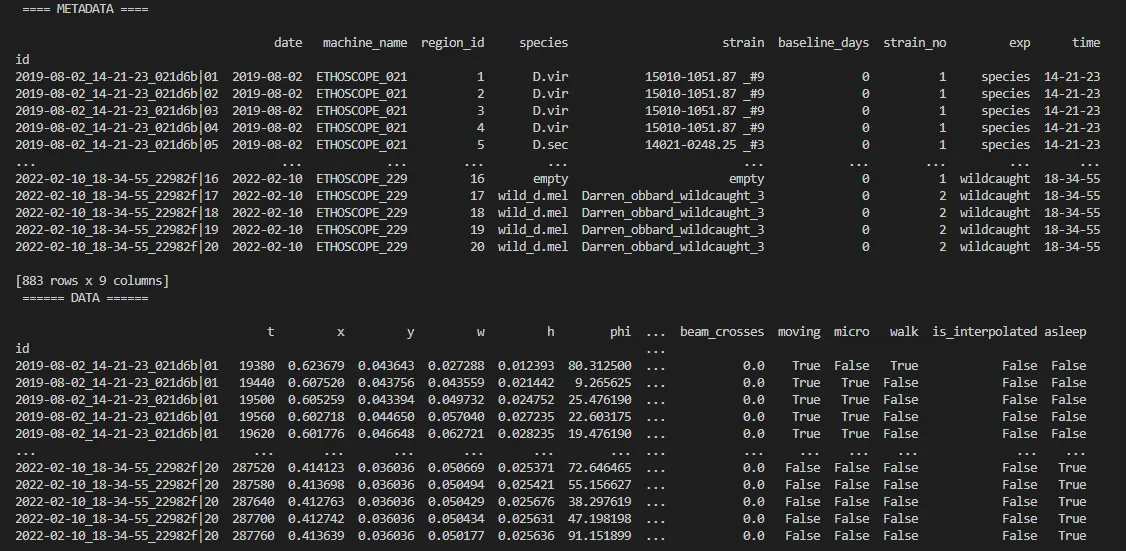
You can also get quick summary statistics of your dataset with .summary()
df.summary()behavpy table with: individuals 675 metavariable 9 variables 13 measurements 3370075# add the argument detailed = True to get information per flydf.summary(detailed = True) data_points time_rangeid2019-08-02_14-21-23_021d6b|01 5756 86400 -> 4319402019-08-02_14-21-23_021d6b|02 5481 86400 -> 431940Visualising your data
Section titled “Visualising your data”Whilst summary statistics are good for a basic overview, visualising the variable of interest over time is usually a lot more informative.
Heatmaps
Section titled “Heatmaps”The first port of call when looking at time series data is to create a heatmap to see if there are any obvious irregularities in your experiments.
# To create a heatmap all you need to write is one line of code!# All plot methods will return the figure, the usual etiquette is to save the variable as fig
fig = df.heatmap('moving') # enter as a string which ever numerical variable you want plotted inside the brackets
# Then all you need to do is the below to generate the figurefig.show()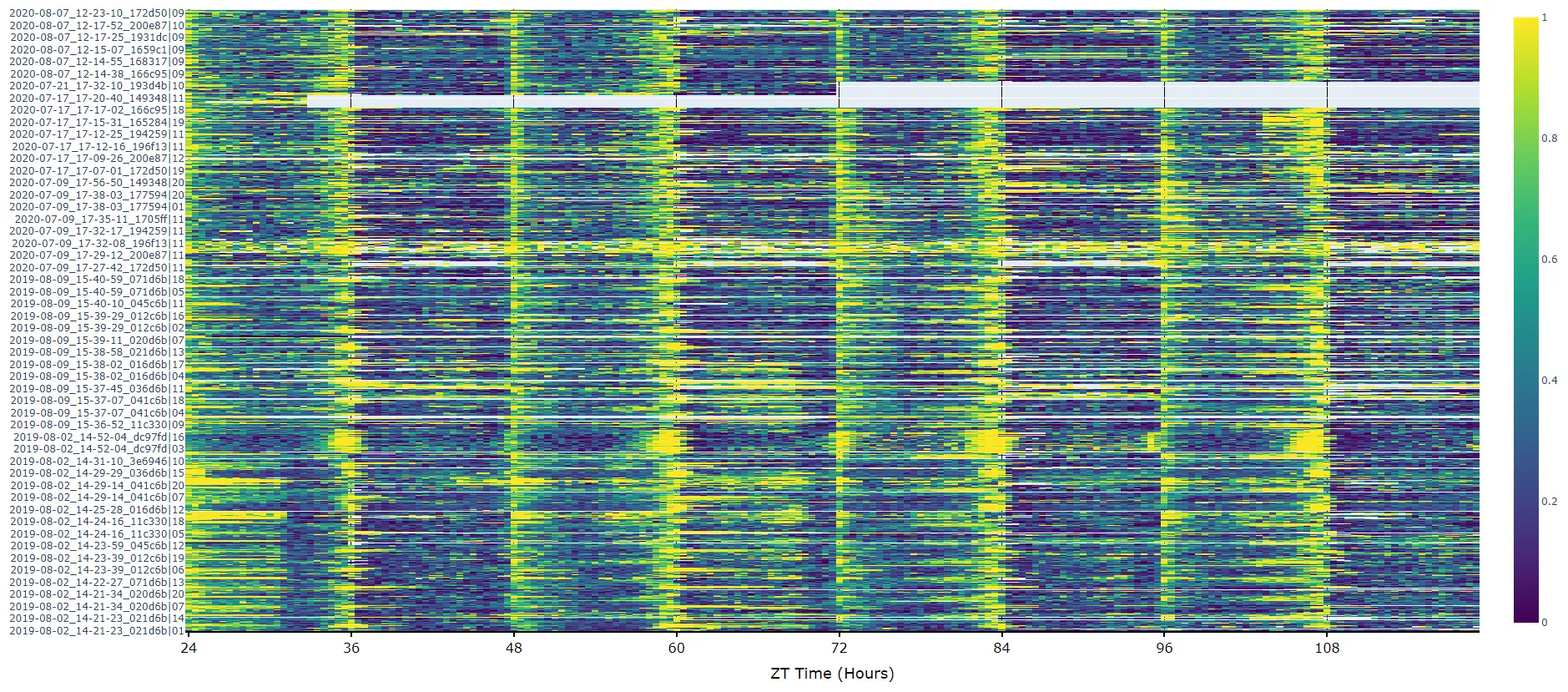
Plots over time
Section titled “Plots over time”For an aggregate view of your variable of interest over time, use the .plot_overtime() method to visualise the mean variable over your given time frame or split it into sub groups using the information in your metadata.
# If wrapped is True each specimen's data will be aggregated to one 24 hour day before being aggregated as a whole. If you want to view each day separately, keep wrapped False.# To achieve the smooth plot a moving average is applied, we found averaging over 30 minutes gave the best results# avg_window is given in minutes, whatever the time between rows of your data; 30 is the default
fig = df.plot_overtime(variable = 'moving',wrapped = True,avg_window = 30)fig.show()# the plots will show the mean with 95% confidence intervals in a lighter colour around the mean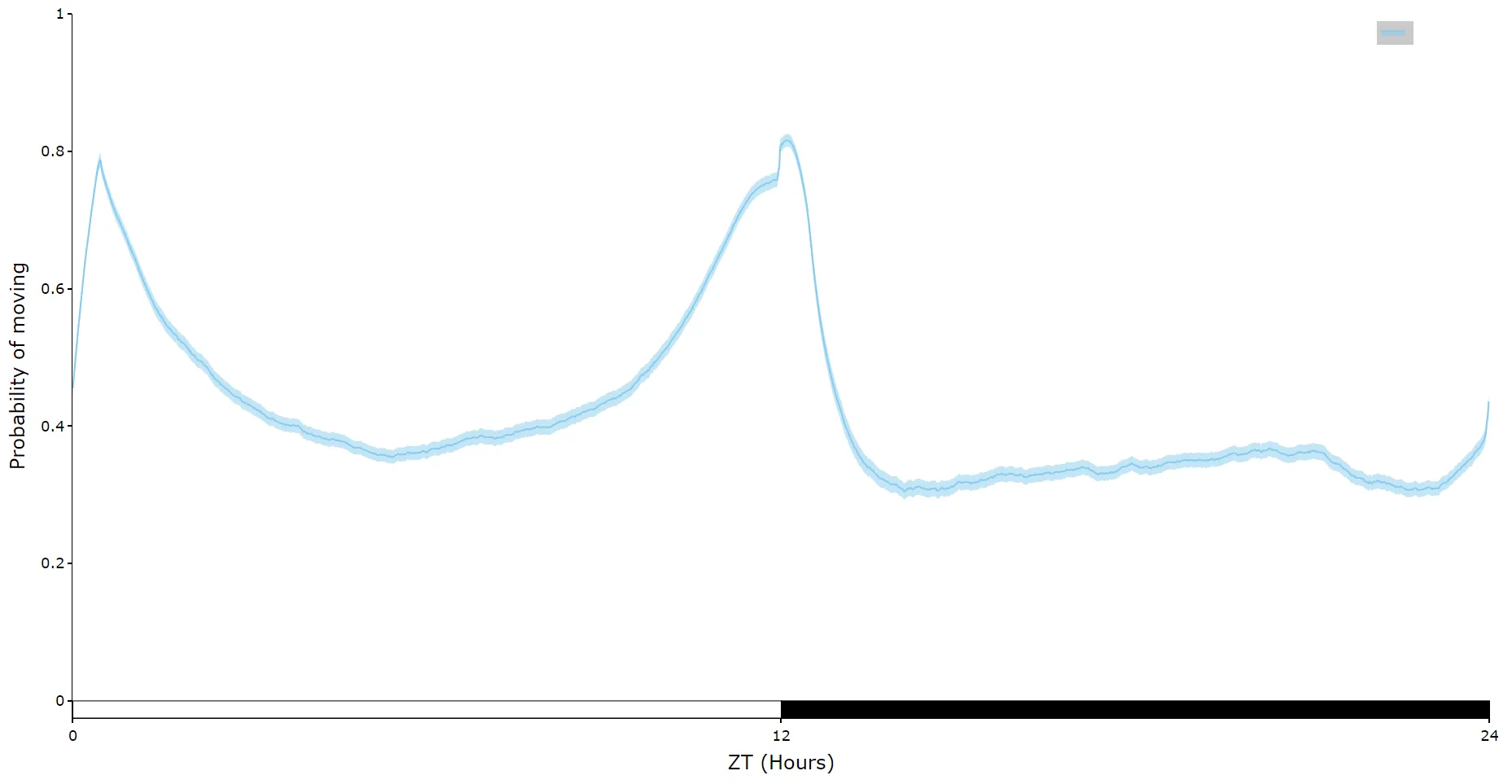
# You can separate out your plots by your specimen labels in the metadata. Specify which column you want from the metadata with facet_col and then specify which groups you want with facet_arg# What you enter for facet_arg must be in a list and be exactly what is in that column in the metadata# Don't like the label names in the column, rename the graphing labels with the facet_labels parameter. This can only be done if you have a same length list for facet_arg. Also make sure they are the same order
fig = df.plot_overtime(variable = 'moving',facet_col = 'species',facet_arg = ['D.vir', 'D.ere', 'D.wil', 'D.sec', 'D.yak'],facet_labels = ['D.virilis', 'D.erecta', 'D.willistoni', 'D.sechellia', 'D.yakuba'])fig.show()
# if you're doing circadian experiments you can specify when night begins with the parameter lights_off to change the phase bars at the bottom, e.g. lights_off = 18 for lights off at ZT 18.# day_length (default 24) sets the length of the experimental day in hours.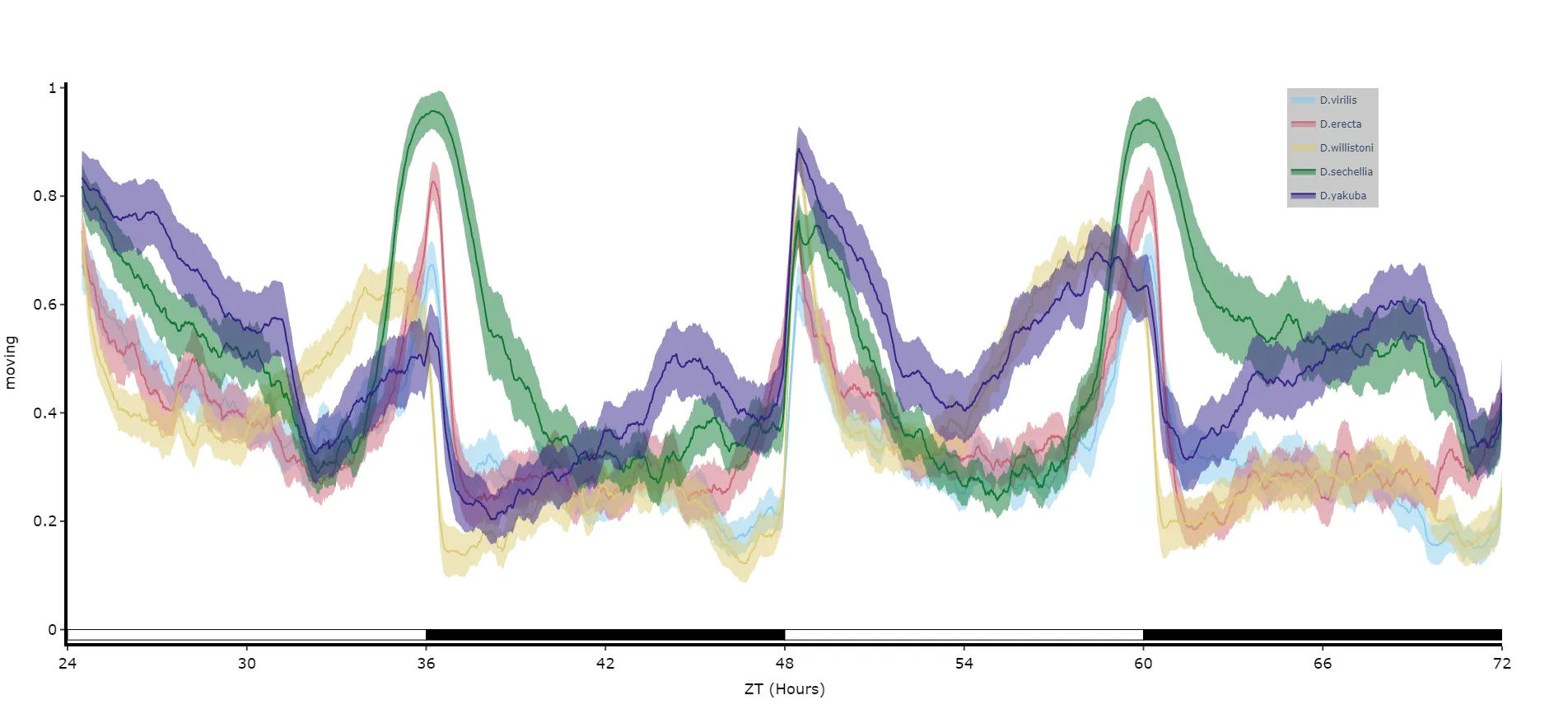
Quantifying sleep
Section titled “Quantifying sleep”The plots above look nice, but we often want to quantify the differences to prove what our eyes are telling us. The method .plot_quantify() plots the mean and 95% CI of the specimens to give a strong visual indication of group differences.
# Quantify parameters are near identical to .plot_overtime()# For all plotting methods in behavpy we can add grid lines to better view the data and you can also add a title, see below for how# All quantifying plots will return two objects, the first will be the figure as normal and the second a pandas dataframe with# the calculated averages per specimen for you to perform statistics on. You can do this via the common statistical package scipy or# with DABEST, a package that produces estimation statistics (effect sizes rather than p-values) and their plots.
fig, stats_df = df.plot_quantify(variable = 'moving',facet_col = 'species',facet_arg = ['D.vir', 'D.ere', 'D.wil', 'D.sec', 'D.yak'],title = 'This is a plot for quantifying',grids = True)fig.show()
# Tip! You can have a facet_col argument and nothing for facet_args and the method will automatically plot all groups within that column. Careful though as the order/colour might not be preserved in similar but different plots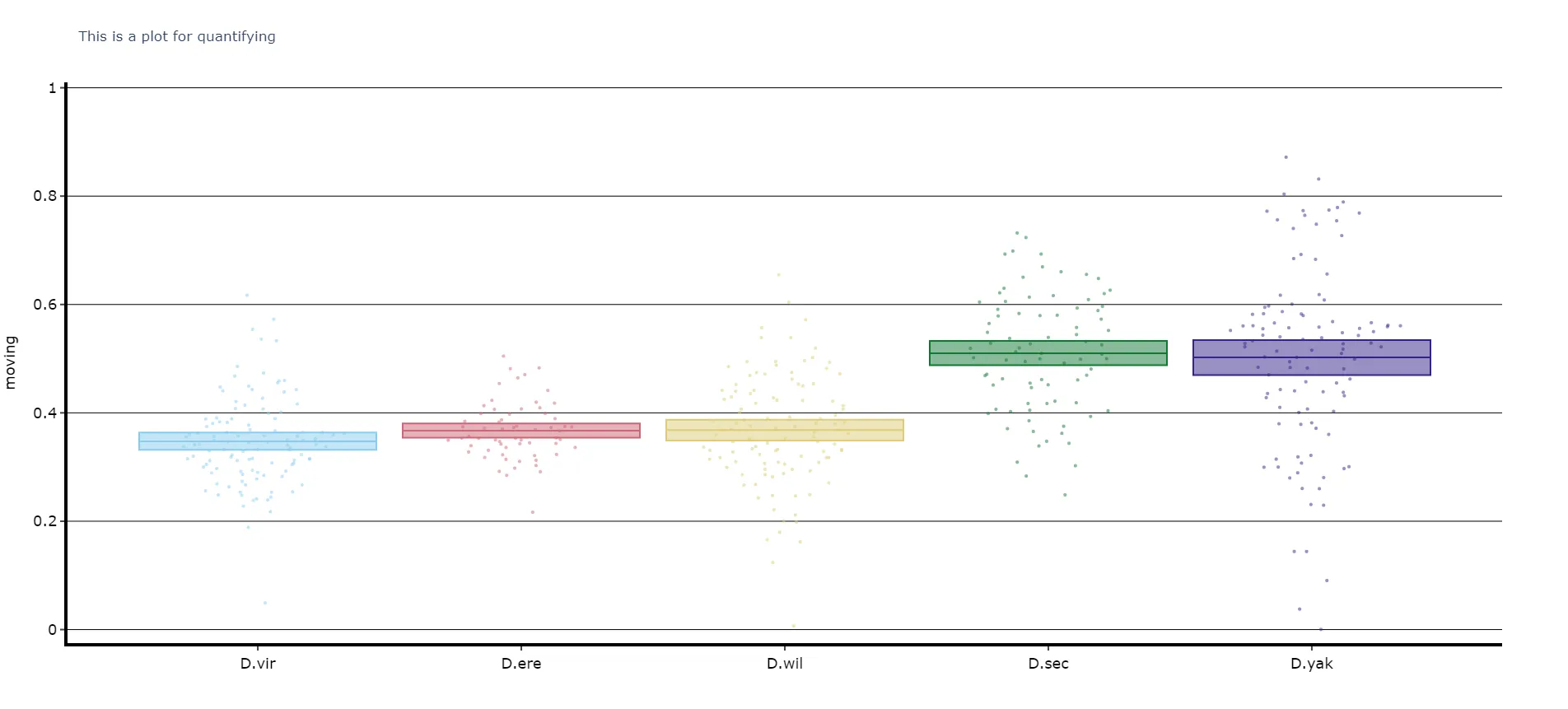
Performing Statistical tests
Section titled “Performing Statistical tests”If you want to perform normal statistical tests then it’s best to use Scipy, a very common python package for statistics with lots of online tutorial on how and when to use it. We’ll run through a demonstration of one below. The table returned with the plot above, stats_df, has one row per specimen (indexed by id) and three columns: moving_mean and moving_std, the mean and standard deviation of the variable for that specimen, and species, its group.
Given we don’t know the distribution type of the data and that each group is independent we’ll use a non-parametric group test, the Kruskal-Wallis H-test (the non-parametric version of a one-way ANOVA).
# First we need to import scipy statsfrom scipy import stats
# Next we need the values of each group in a numpy array of numbers (dtype = float)# Here we group the table by the facet column and send each group's values as a numpy array into a liststat_list = []for group, values in stats_df.groupby('species', observed = True):    stat_list.append(values['moving_mean'].to_numpy(dtype = float))
# Alternatively you can set each one as its own variabledv = stats_df.loc[stats_df['species'] == 'D.vir', 'moving_mean'].to_numpy(dtype = float)de = stats_df.loc[stats_df['species'] == 'D.ere', 'moving_mean'].to_numpy(dtype = float)# ... and so on for the other groups
# Now we call the Kruskal function, remember to always have the nan_policy set as 'omit' otherwise the output will be a NaN
# If using the first method (the * unpacks the list)stats.kruskal(*stat_list, nan_policy = 'omit')
# If using the second (listing every group)stats.kruskal(dv, de, nan_policy = 'omit')
## output: KruskalResult(statistic=134.17956605297556, pvalue=4.970034343600611e-28)
# The pvalue is below 0.05 so we can say that not all the groups have the same distribution
# Now we want to do some post hoc testing to find inter group significance# For that we need another package scikit_posthocs (pip install scikit-posthocs)import scikit_posthocs as sp
p_values = sp.posthoc_dunn(stat_list, p_adjust = 'holm')print(p_values)
1 2 3 4 51 1.000000e+00 2.467299e-01 0.000311 1.096731e-11 1.280937e-162 2.467299e-01 1.000000e+00 0.183924 1.779848e-05 7.958752e-083 3.106113e-04 1.839239e-01 1.000000 3.079278e-03 3.884385e-054 1.096731e-11 1.779848e-05 0.003079 1.000000e+00 4.063266e-015 1.280937e-16 7.958752e-08 0.000039 4.063266e-01 1.000000e+00print(p_values > 0.05) 1 2 3 4 51 True True False False False2 True True True False False3 False True True False False4 False False False True True5 False False False True TrueQuantify day and night
Section titled “Quantify day and night”Often you’ll want to compare a variable between the day and night, particularly total sleep. This variation of .plot_quantify() will plot the mean and 95% CI of a variable for a user defined day and night.
# Quantify parameters are near identical to .plot_quantify() with the addition of day_length and lights_off which takes (in hours) how long the day is for the specimen (defaults 24) and at what point within that day the lights turn off (night, defaults 12)
fig, stats = df.plot_day_night(variable = 'asleep',facet_col = 'species',facet_arg = ['D.vir', 'D.ere', 'D.wil', 'D.sec', 'D.yak'],facet_labels = ['D.virilis', 'D.erecta', 'D.willistoni', 'D.sechellia', 'D.yakuba'],day_length = 24,lights_off = 12)fig.show()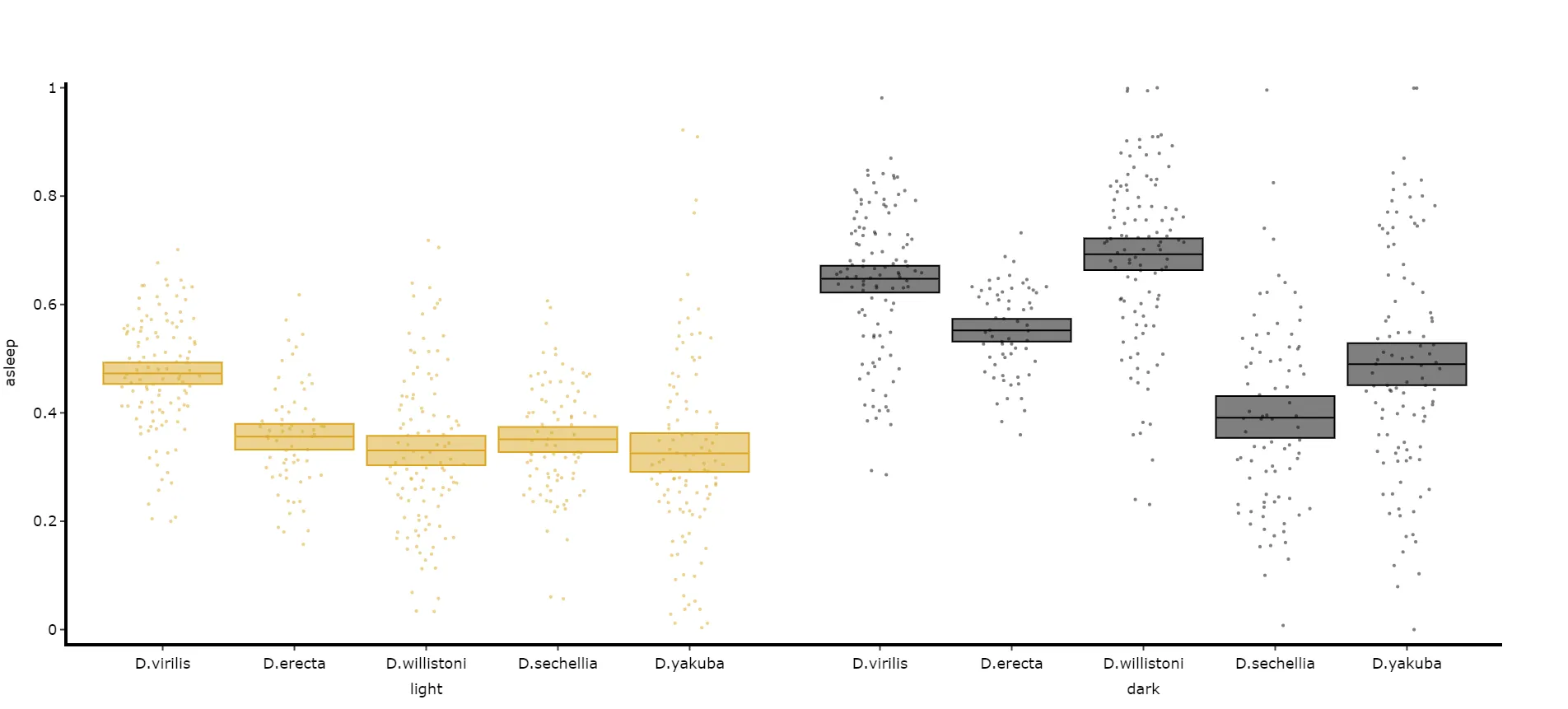
Compare variables
Section titled “Compare variables”You may sometimes want to compare different but similar variables from your experiment, often comparing them across different experimental groups. Use .plot_compare_variables() to compare up to 24 different variables (we run out of colours after that…).
# Like the others it takes the regular arguments. However, rather than the variable parameter it's variables, which takes a list of strings of the different columns you want to compare. With the Plotly canvas the final variable in the list will have its own y-axis on the right-hand side, so save this one for different scales; when faceting, the Seaborn canvas draws each variable on its own plot instead.
# The most often use of this with the ethoscope data is to compare micro movements to walking movements to better understand the locomotion of the specimen, so lets look at that.
fig, stats = df.plot_compare_variables(    variables = ['micro', 'walk'],    facet_col = 'species',    facet_arg = ['D.vir', 'D.ere', 'D.wil', 'D.sec', 'D.yak'],    facet_labels = ['D.virilis', 'D.erecta', 'D.willistoni', 'D.sechellia', 'D.yakuba'])fig.show()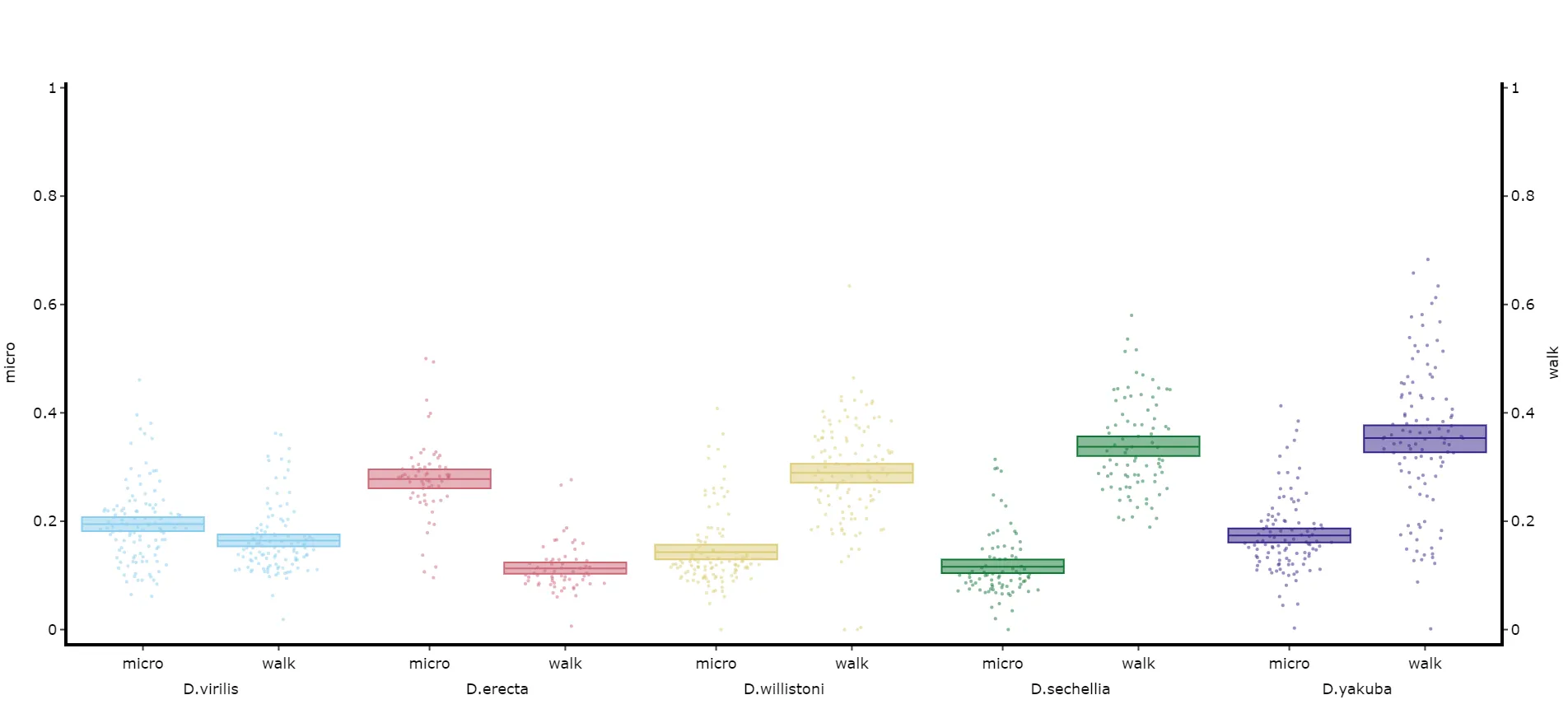
# Lets add the velocity of the specimen to see how it looks with different scales.
fig, stats = df.plot_compare_variables(    variables = ['micro', 'walk', 'mean_velocity'],    facet_col = 'species',    facet_arg = ['D.vir', 'D.ere', 'D.wil', 'D.sec', 'D.yak', 'D.sims'],    facet_labels = ['D.virilis', 'D.erecta', 'D.willistoni', 'D.sechellia', 'D.yakuba', 'D.Simulans'],    # Add grids to the plot so we can better see how the plots align    grids = True)fig.show()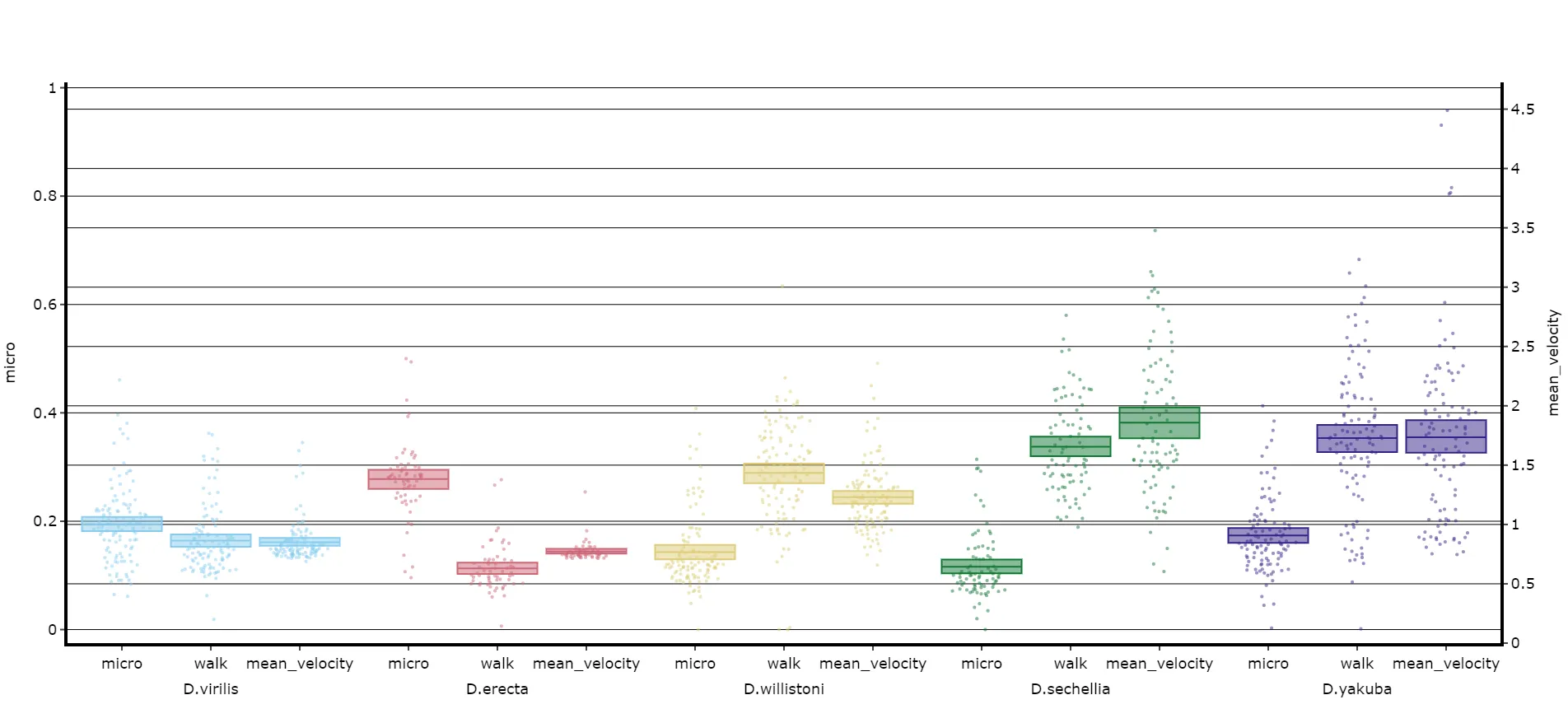
Saving plots
Section titled “Saving plots”As seen above all plot methods will produce a figure structure that you use .show() to generate the plot. To save these plots all we need to do is pass the fig object to the behavpy method .save_figure(), called on the behavpy object that made the plot.
You can save your plots as PDFs, SVGs, JPEGs or PNGs. It’s recommended you save it as either a pdf or svg for the best quality and then the ability to alter them later.
With the Plotly canvas you can also save the plot as a html file. Html files retain the interactive nature of the plotly plots. This comes in most useful when using jupyter notebooks and you want to see your plot full screen, rather than just plotted under the cell.
Saving a Plotly figure as a pdf, svg, jpg or png needs the kaleido package, which ethoscopy does not install. With the Plotly 5 that ethoscopy 3.0 uses, install version 0.2.1: pip install kaleido==0.2.1. Html files and Seaborn figures need nothing extra.
# simply pass your returned fig as the argument alongside its save path and name to save
# remember to change the file type at the end of path as you want it# you can set the width and height of the saved image with the parameters width and height (Plotly only, and no effect for .html files)df.save_figure(fig, './tutorial_fig.pdf', width = 1500, height = 1000)
# or to get a better view of it and keep the interactivity save it as a html filedf.save_figure(fig, './tutorial_fig.html')  # you can't change the height and width when saved as a html